
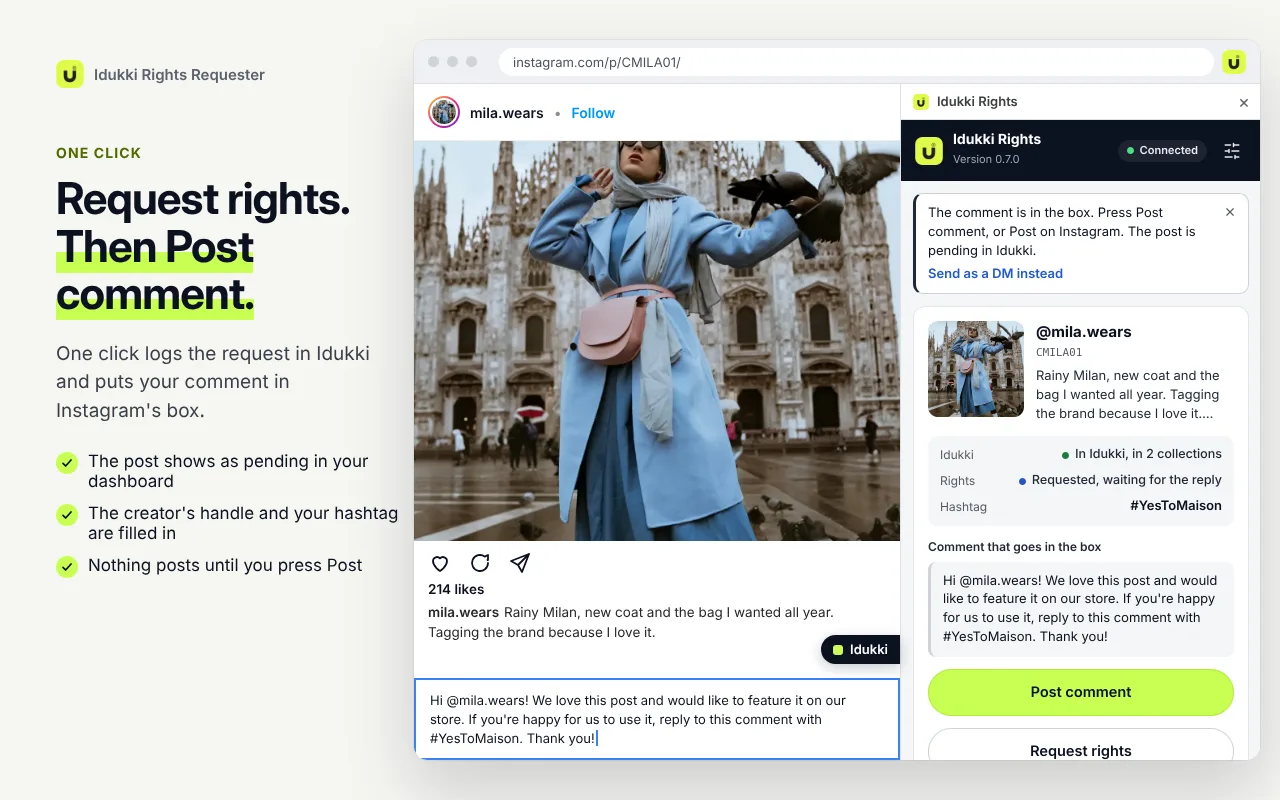
Your collection is full of customer photos you want on product pages. Each one needs the creator’s OK first. Asking means opening every post, pasting a comment and remembering who you asked. The extension does that from a side panel next to the post. It marks each request in Idukki, so the answer lands in the same place.
Install and connect
Set up the extension
- Add it to Chrome. Open Idukki Rights Requester in the Chrome Web Store and click Add to Chrome. Pin it to the toolbar.
- Create a key in Idukki. Open Settings, Integrations, Chrome extension. Click Create extension key. The key shows once, so copy it now.
- Paste the key. Click the Idukki icon in the toolbar. The side panel opens. Open Settings with the sliders icon, paste the key and click Save.
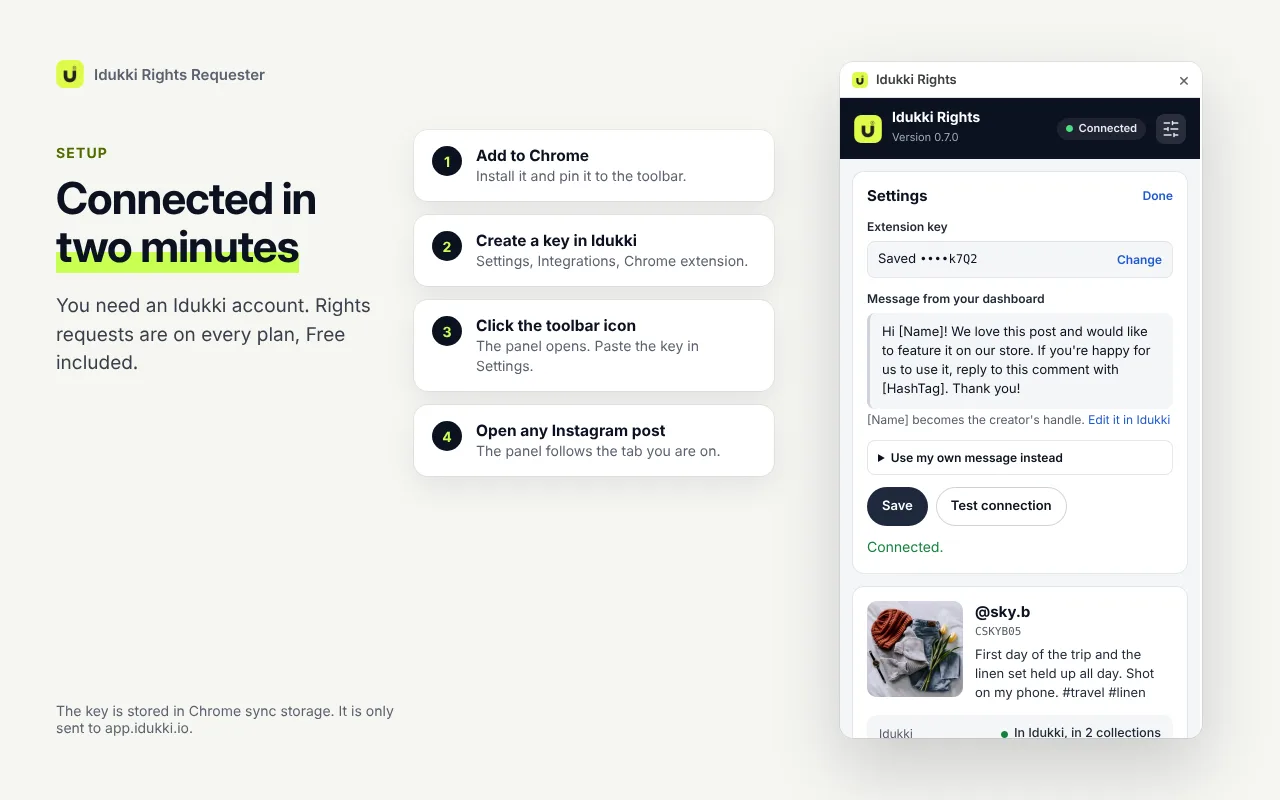
Settings shows your dashboard’s rights message. Test connection checks the key. - Test the connection. Click Test connection. The pill at the top turns to Connected.
The panel uses the rights message from your Idukki dashboard. To use other words, open “Use my own message instead”. There, [Name] becomes the creator’s handle and [HashTag] becomes your approval hashtag.
Your first request
Ask one creator
- Open the post. Open an Instagram post or reel. The panel follows the tab you are on.
- Check the card. The card shows the photo, the handle and the caption. It says whether the post is in Idukki. It shows your hashtag and the exact comment that goes in the box.
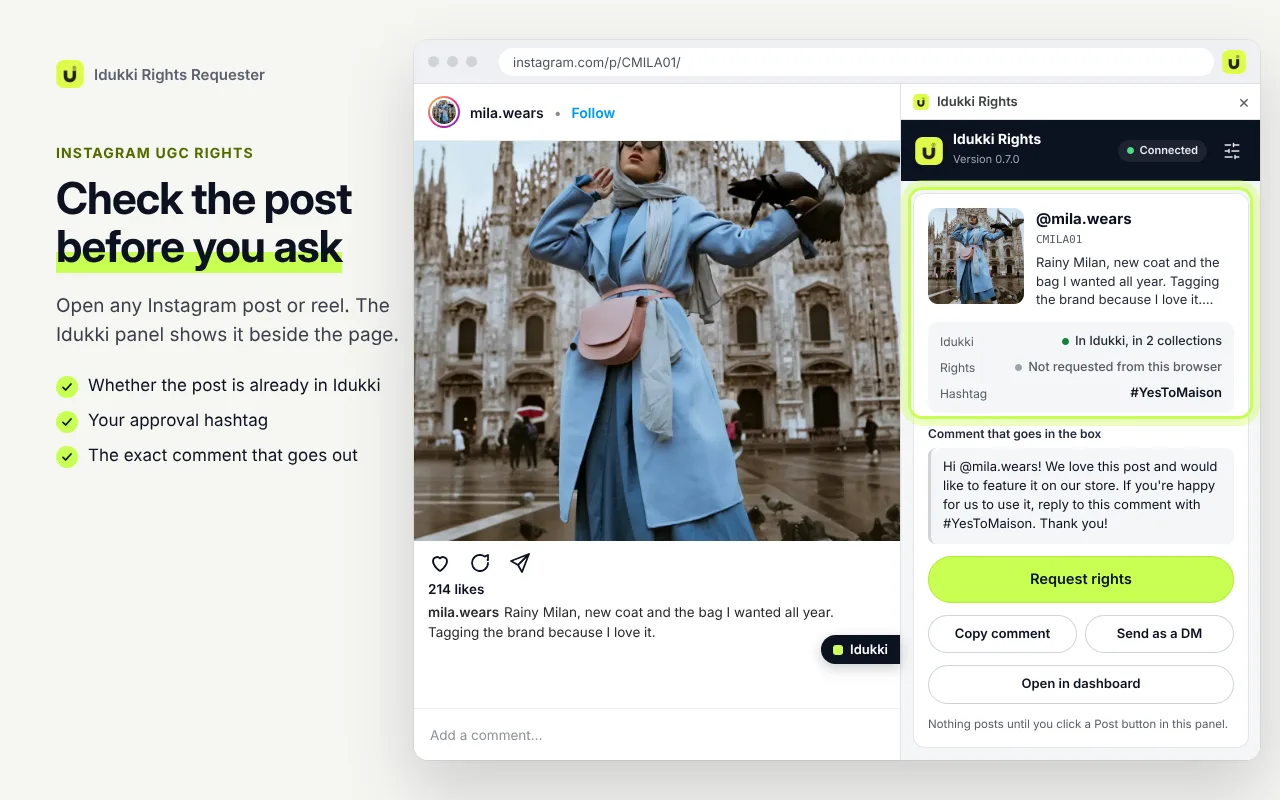
The post card in the side panel: in Idukki, rights status, hashtag and the comment. - Click Request rights. The post turns pending in Idukki. The comment goes into the post’s comment box, with the handle and hashtag filled in. It is copied too.
- Post it. Click Post comment in the panel, or press Post on Instagram. Nothing posts until you do. The comment goes out from your own Instagram account.
Prefer a private message? Click Send as a DM instead. A reply by DM is approved by hand in the dashboard.
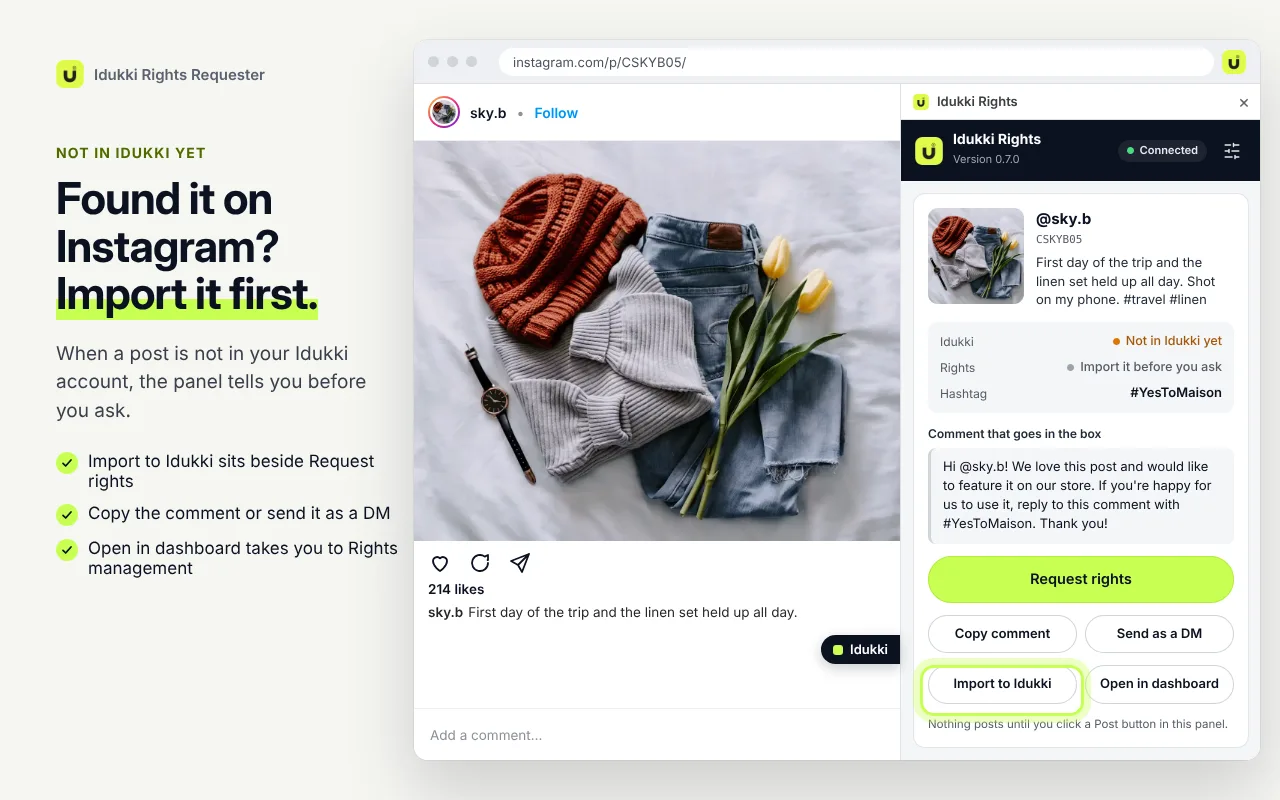
If the post is not in Idukki yet, the card says “Not in Idukki yet”. Import the post into Idukki first, then ask. Request rights still copies the message.
Work through a queue
Ask many creators in one sitting
- Pick posts in Idukki. Open a collection and select the Instagram posts you want to ask about. Click Request rights in Instagram. With a connected Instagram account that can comment, Idukki asks for those posts itself.
- Open the first post. A message confirms the posts are queued. Click Open first post. The panel lists the queue with each photo and caption.
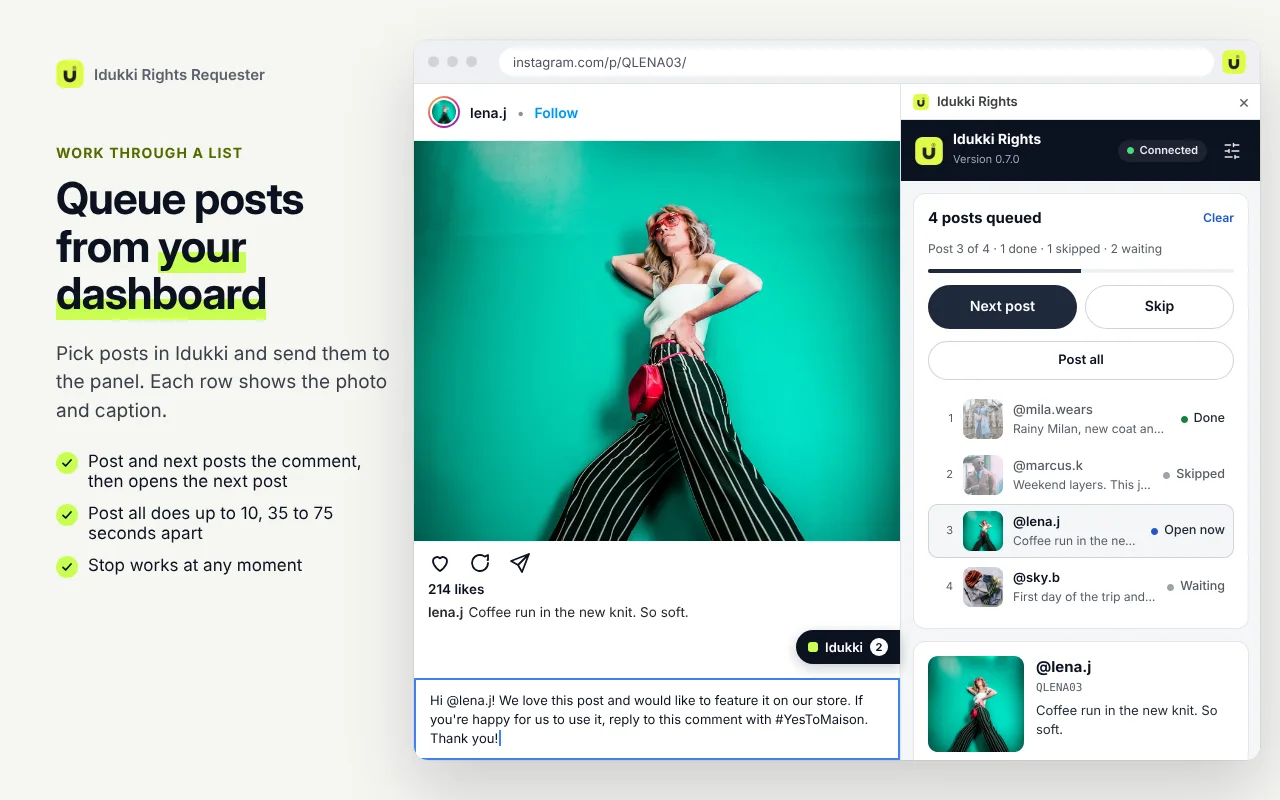
The queue in the side panel, with done, skipped and waiting posts. Next post, Skip and Post all sit above it. - Post and next. Click Post and next. The panel posts the comment and waits to see it on the post. Then it opens the next post. Skip moves on without posting.
- Or Post all. Click Post all and confirm. It posts up to 10 comments, one at a time, 35 to 75 seconds apart. It skips posts that are not in Idukki or already have rights.
- Post all stops at once when you press Stop.
- It stops if Instagram asks you to slow down, or shows a login page.
- It stops if a comment does not appear within 15 seconds.
- It stops if you close the tab or move it to another page.
- After 10 posts it stops and says how many are left. Start another run when you are ready.
The queue is kept in your Idukki account too. Reinstall the extension, or open it in a second browser. Add your key again and open the panel. The queue comes back with its done and skipped posts.
See who said yes
The Updates list sits above the queue. It shows the rights you asked for in the last 30 days. Each one reads approved, waiting or declined. A waiting request shows how long it has waited, such as “Waiting 3 days”. New answers carry a New tag.
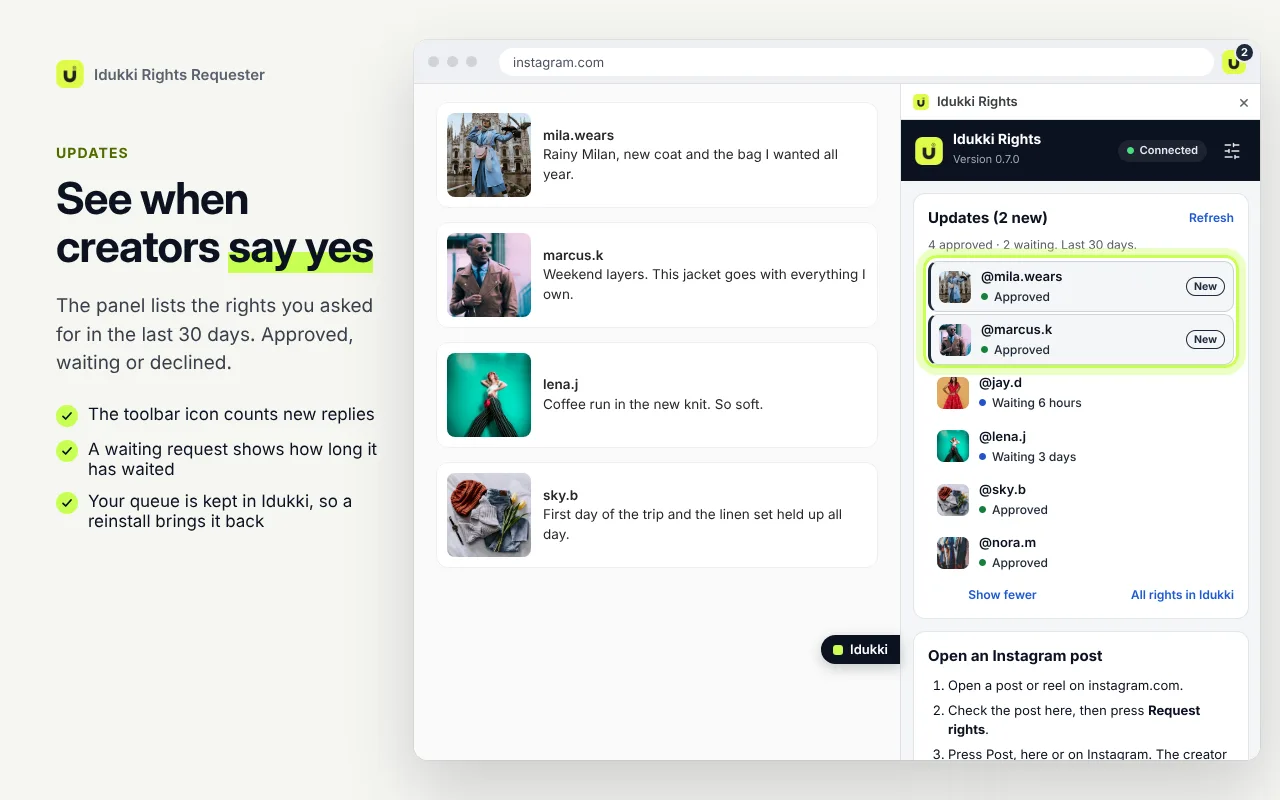
The extension checks every 15 minutes and each time you open the panel. It shows no pop-ups. The toolbar icon shows a number instead, and it clears once you see the list. All rights in Idukki opens Rights management in the dashboard.
When the creator replies
Idukki reads the comments on your pending Instagram requests every hour. It covers requests from the last 30 days. A reply by the post’s owner that carries your hashtag approves the post. That includes a reply under your own comment.
- The reply is stored as evidence on the post’s rights record.
- A reply from another account does not approve the post.
- If the creator changed their handle, Idukki looks up the post’s owner.
- A yes by DM is approved by you, in the dashboard. Nothing approves without the creator’s reply.
Once approved, the post can show in rights-gated collections. The Rights report, under Analytics, Content, counts requests, grants and the oldest waiting requests.
What the extension sends
It sends the post link, the creator’s handle and the caption. It also sends which steps you used, such as “comment posted”, and its version. All of it goes to your Idukki account on app.idukki.io. Your key is kept in Chrome sync storage, in your own browser. The extension never sends a DM or likes a post for you.
Common questions
- Does the extension post comments by itself?
- No. It posts when you click Post comment, Post and next or Post all. Post all does at most 10 per run, 35 to 75 seconds apart.
- Does it work on TikTok?
- Not yet. It works on Instagram posts and reels.
- Can I write the request in another language?
- Yes. The panel is in English. The comment is the message you set in Idukki or in the extension.
- Which plan do I need?
- Any Idukki plan, Free included. Rights requests are on every plan.
- I reinstalled the extension. Where did my queue go?
- It is kept in Idukki. Add your key again and open the panel. The queue comes back.
- Test connection fails. What now?
- Check the key was copied whole. Make a new key under Settings, Integrations, Chrome extension if you lost it. The old key stops working once you revoke it.