
The thumbnail is the still a shopper sees before a video plays, so it does a lot of the work of earning the click. On a video post, the Thumbnail action ("Set or generate a preview image") lets you auto-create one from a frame or upload your own.
Set a thumbnail
- Open the post’s menu. On a video post, click the three-dot actions menu.
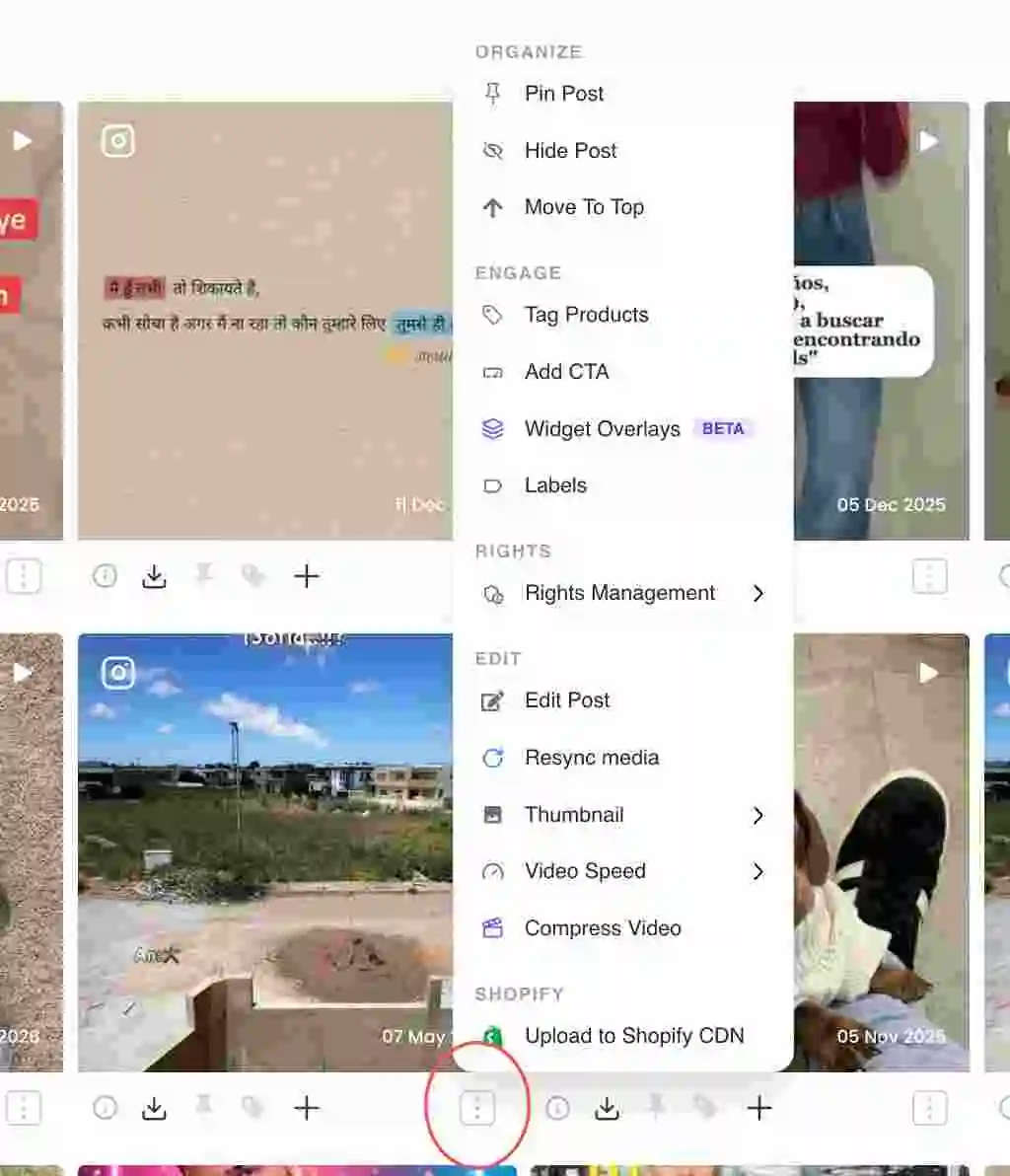
Three-dot actions menu on a video post card - Open Thumbnail. Under the Edit section, hover Thumbnail to expand its submenu.In the dashboard: Thumbnail submenu under the Edit section of the post menu
- Generate or upload. Choose Generate ("Auto-create from video frame") to let Idukki pick a frame, or Custom ("Upload your own preview image") to use your own image.In the dashboard: Generate and Custom options inside the Thumbnail submenu
- Confirm. The new thumbnail becomes the post’s preview image in the widget.
Generate vs Custom
Generate auto-creates a thumbnail from a frame of the video, which is the fastest option. Custom lets you upload your own preview image when you want a branded or specific frame the auto-pick would miss.
Related guides
- Set up shoppable video: /help/shoppable-video-setup
- Tag products in a video with Video Hotspot Tagging: /help/video-hotspot-tagging
- Edit a post’s caption and details: /help/edit-a-post


