When you connect Instagram, Idukki keeps pulling in new posts on its own. That is the point of the sync, but it means content can land on your live widget before anyone on your team has looked at it. Taking a video back off is a curation action inside Idukki, and there are five of them depending on what the actual problem is.
Which one do you want?
- One video is off-brand, low quality or out of stock, and you may want it back later: hide the post.
- The video is fine but should not be leading the widget: unpin it.
- Only part of a carousel is weak: hide those slides and keep the rest live.
- The account behind it keeps posting content you do not want: block the creator.
- You want the widget to show nothing except what your team has explicitly approved: curate a pinned set and filter to it.
Take one video off the widget
Hiding is the everyday answer. The post drops off the live widget straight away and stays in the collection, so you can bring it back without re-importing anything.
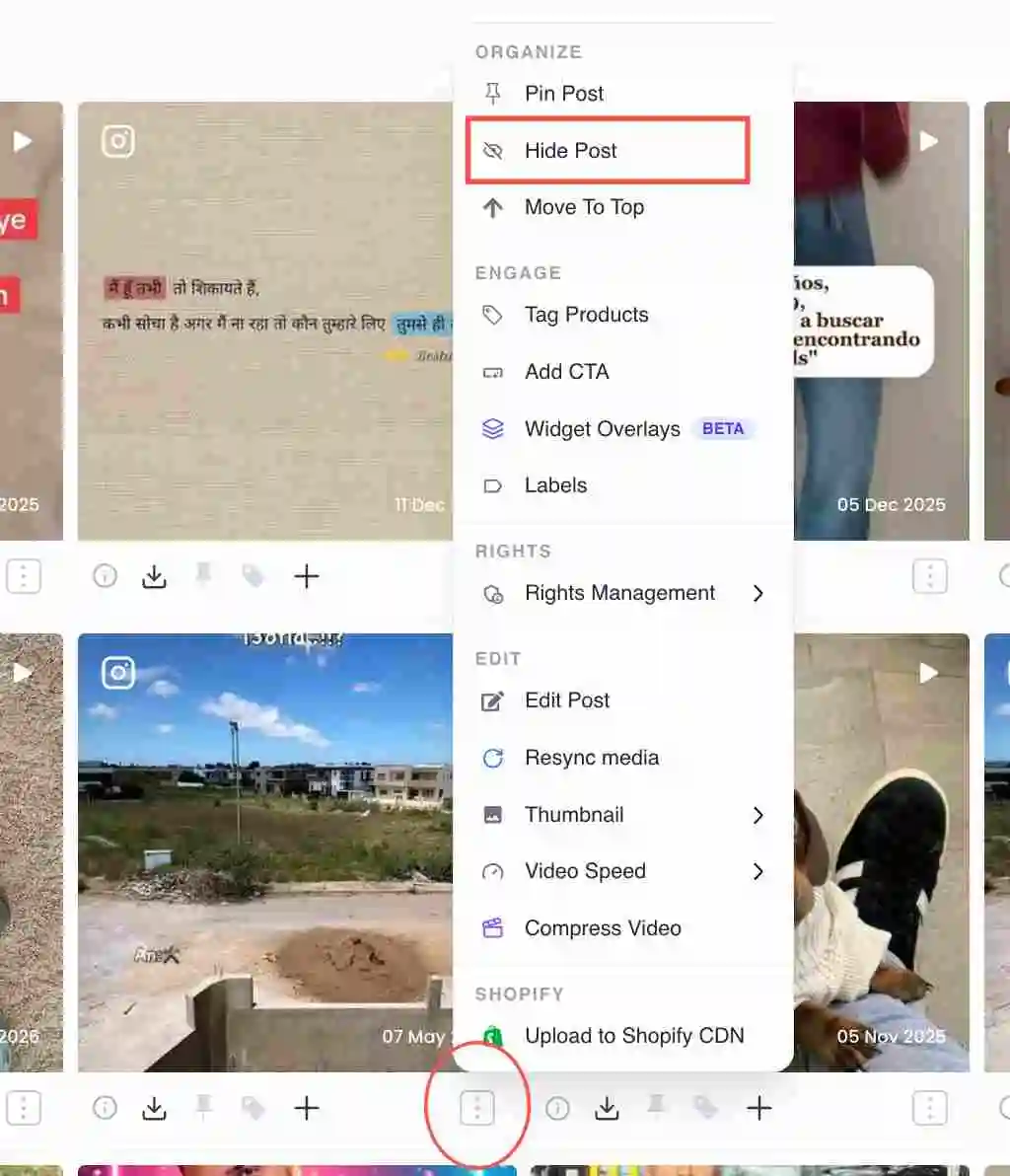
Hide the post
- Open the collection feeding the widget. Go to Manage Collection and open the collection the video is showing in. If the same video is in more than one collection, you will need to hide it in each.In the dashboard: Manage Collection grid with an Instagram video card
- Open the post’s menu. Click the three-dot actions menu on the video card.
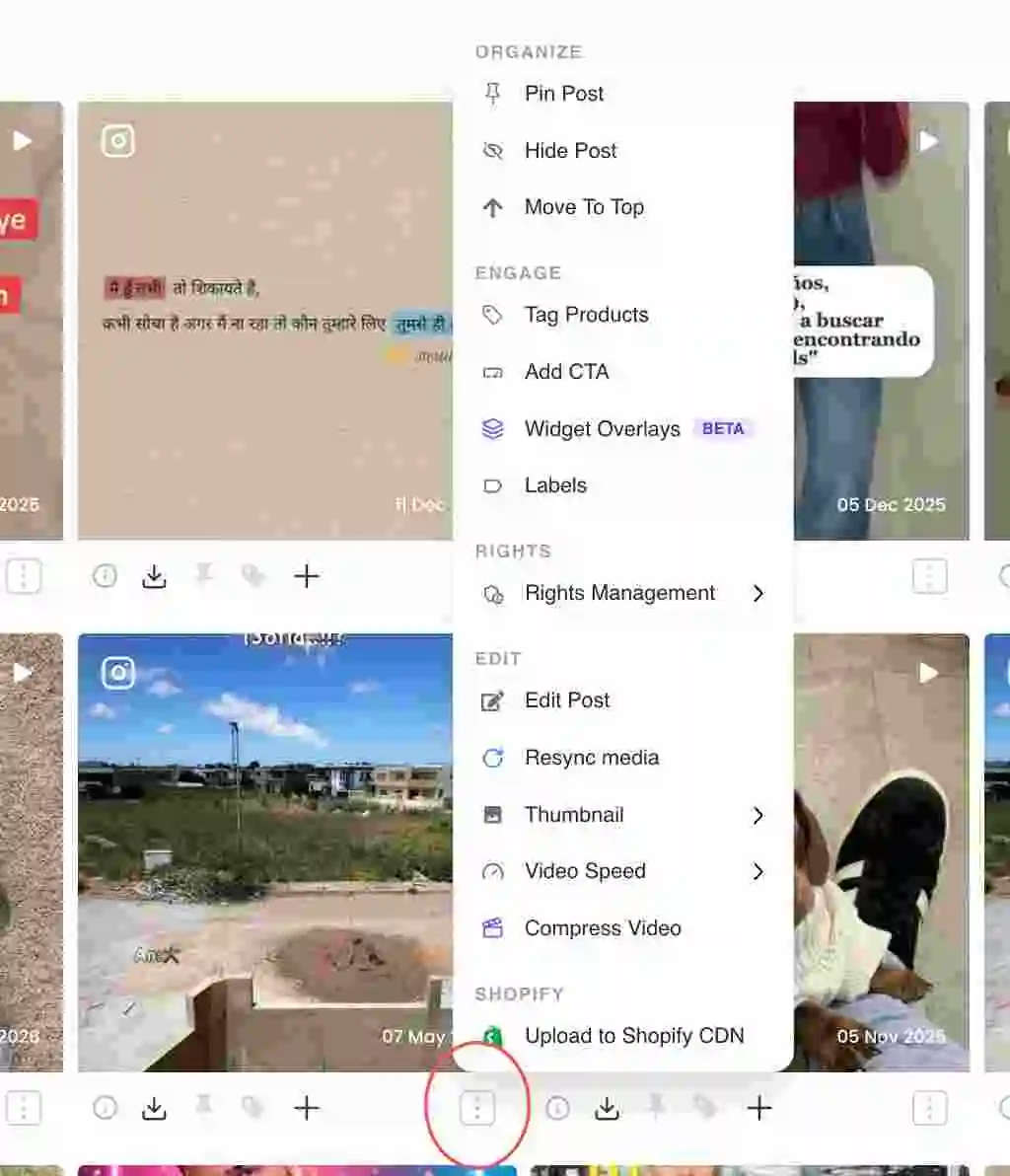
Three-dot actions menu on an Instagram video post card - Choose Hide Post. Under the Organize section, click Hide Post. The video leaves the live widget and stays in the collection.
Hide Post option under the Organize section of the post menu - Check the widget. Reload the page the widget sits on. Changes are live within a minute or so; a hard refresh clears any cached copy in your own browser.
- Bring it back when you want it. Open the same menu on the hidden post and click Show Post.
Hide only some slides of a carousel
On a multi-image or multi-clip carousel, Hide Post behaves differently. Instead of dropping the whole card it opens a slide manager, so you can take down the two weak slides and leave the strong ones running. The Hide item then shows a count (for example "2 hidden") so the state is visible without opening it. Full walkthrough at /help/reorder-carousel-slides.
Stop a video leading the widget
If a video was pinned it sits ahead of everything else regardless of sort order, which is often why an old post is still the first thing shoppers see. Unpinning demotes it back into the normal order rather than removing it.
Unpin the post
- Spot the pin. A pinned post carries a filled pin icon on its card, so you can find it without opening every menu.In the dashboard: Post card showing the filled pin icon that marks a pinned post
- Choose Unpin Post. Open the three-dot menu and click Unpin Post under the Organize section. The video falls back into whatever sort the collection uses.In the dashboard: Unpin Post option under the Organize section of the post menu
Stop everything from one creator
Hiding posts one at a time is the wrong tool when the account itself is the problem. Block hides every post from that handle across your collections in a single action, and it applies to anything they post in future too.
Block the creator
- Open the menu on any of their posts. Click the three-dot actions menu on a post from the creator you want gone.
Three-dot actions menu on a post card - Choose Block @handle. At the bottom of the menu, click the red Block @handle item ("Hide all posts from this user"), then confirm in the dialog.In the dashboard: Block @handle option at the bottom of the post menu
Show only what your team has approved
Some brands would rather not moderate reactively at all. The alternative is to run the widget as an allow-list: pin the posts you have signed off, and filter the collection so pinned content is what you are working with. Nothing reaches the widget on the strength of the sync alone.
Run a pinned-only set
- Pin the posts you approve. Open each approved post’s three-dot menu and click Pin Post. Pinned posts always sit ahead of unpinned ones.
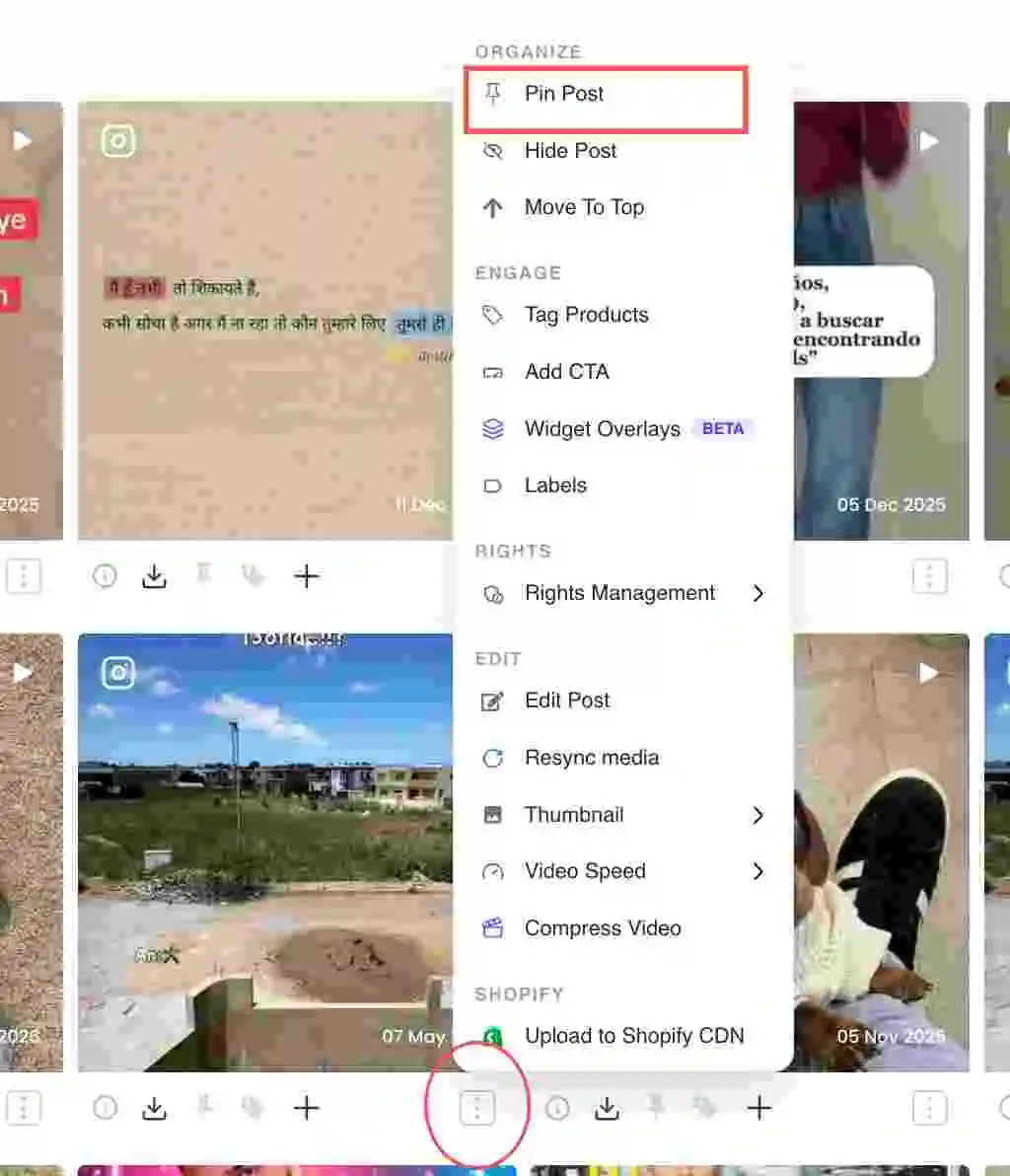
Pin Post option under the Organize section of the post menu - Filter to Pinned posts. In the collection’s filter controls, set Pin Status to Pinned Posts. The grid now shows only your approved set, which makes review and hand-off to a colleague far quicker.In the dashboard: Pin Status filter set to Pinned Posts in the collection filter panel
- Order them. Use the pinned-order tool to drag your approved posts into the exact sequence you want. See /help/reorder-posts.
Common questions
- Does any of this delete the video from Instagram?
- No. Idukki holds its own copy of what it synced. Hiding, unpinning and blocking only change what your widget displays. The creator’s original post is untouched and they are not notified.
- The video is gone from the dashboard but still on my site.
- That is almost always a cache. Hard-refresh the page, and if you sit behind a CDN give it a minute to propagate. If it persists, check whether the same video is in a second collection that also feeds a widget on that page.
- Will it sync back in after I hide it?
- No. Hiding is remembered against that post, so a later sync will not bring it back onto the widget. Blocking a creator also holds for their future posts.
- Why is Hide Post or Pin Post greyed out?
- Both can be gated by plan. If the option is locked, it is not included on your current plan.
- The creator asked us to take their video down.
- Hide it, then log the request through Rights Management so the takedown is recorded against the post. See /help/takedown-and-rtbf.
Related guides
The full detail on hiding, showing again and auditing what is off the widget.
Slide-level control on multi-image and multi-clip posts.
Hide every post from one handle across all your collections.
Fix your strongest proof to the front of the widget.
When a creator asks you to remove their content for good.