
Video Hotspot Tagging rende acquistabile un video nel momento giusto. Metti in pausa su un fotogramma, clicca un punto del video e tagga un prodotto. Durante la riproduzione il prodotto compare come hotspot per circa tre secondi in quel punto. È l'equivalente per i video di Hotspot Tagging sulle immagini, che segna una posizione fissa su una foto statica.
Aggiungi un hotspot al video
- Open Tag Products. Su un post video, apri il menu con i tre puntini e scegli Tag Products nella sezione Engage.
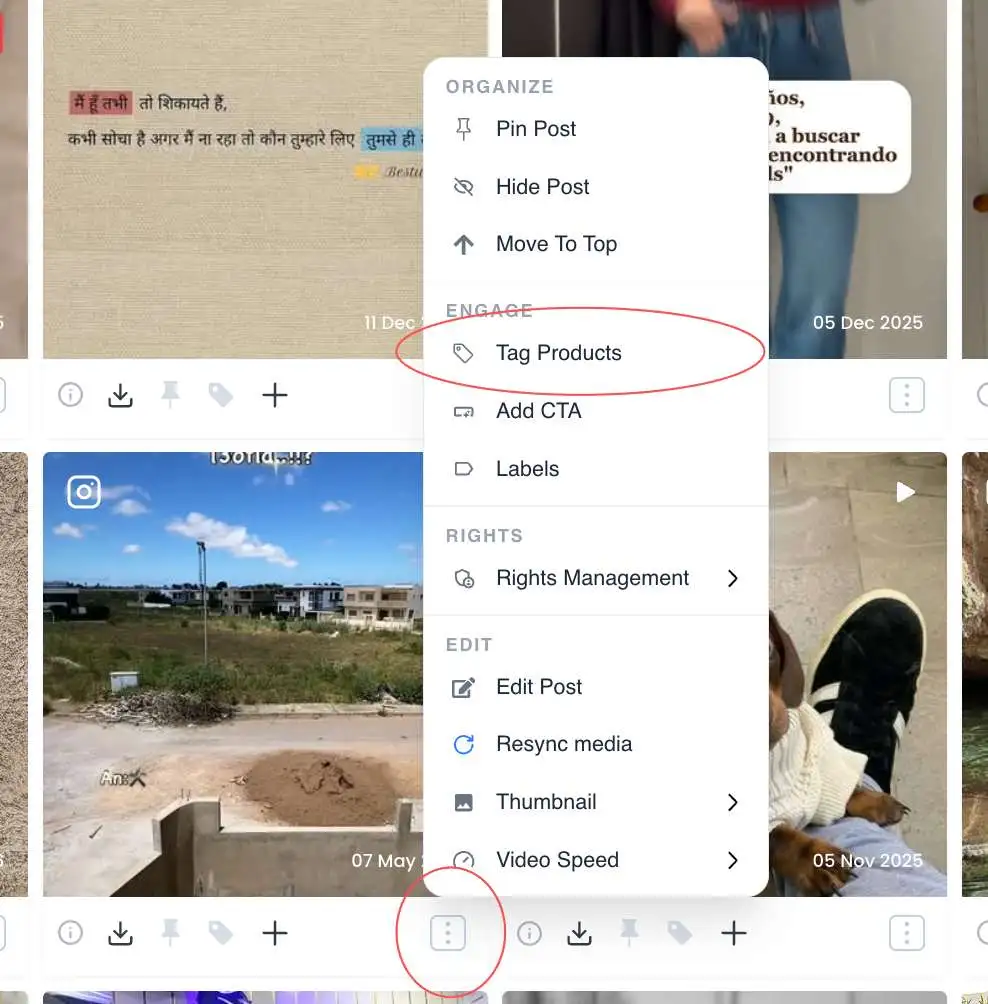
Tag Products option under the Engage section of the post menu - Choose Video Hotspot Tagging. Nella finestra Tag a product, scegli Video Hotspot Tagging: "Pause at a moment, click a position on the video, and tag a product — it appears as a hotspot for 3 seconds during playback."
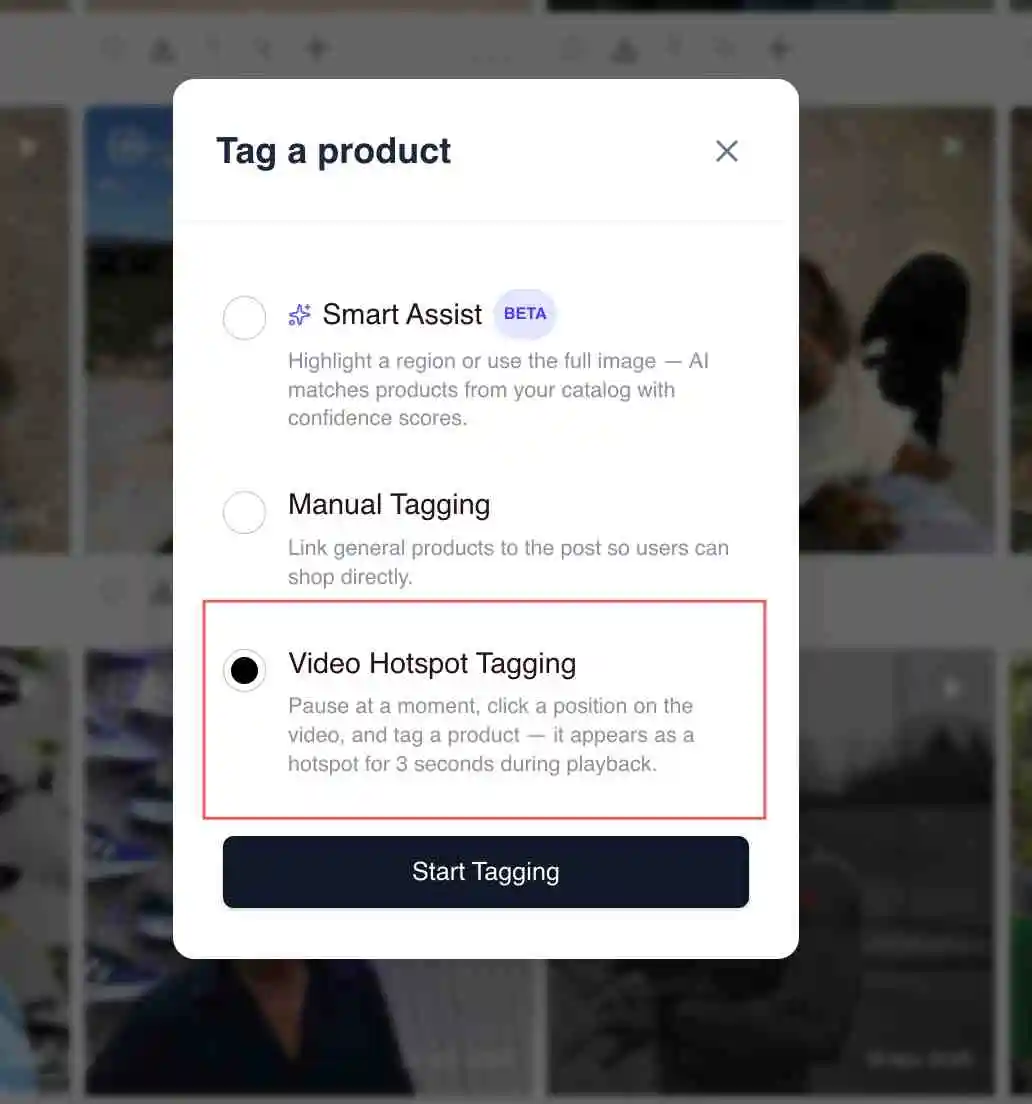
Video Hotspot Tagging option in the Tag a product dialog - Pause at the moment. Scorri o metti in pausa il video sul fotogramma in cui il prodotto si vede bene.
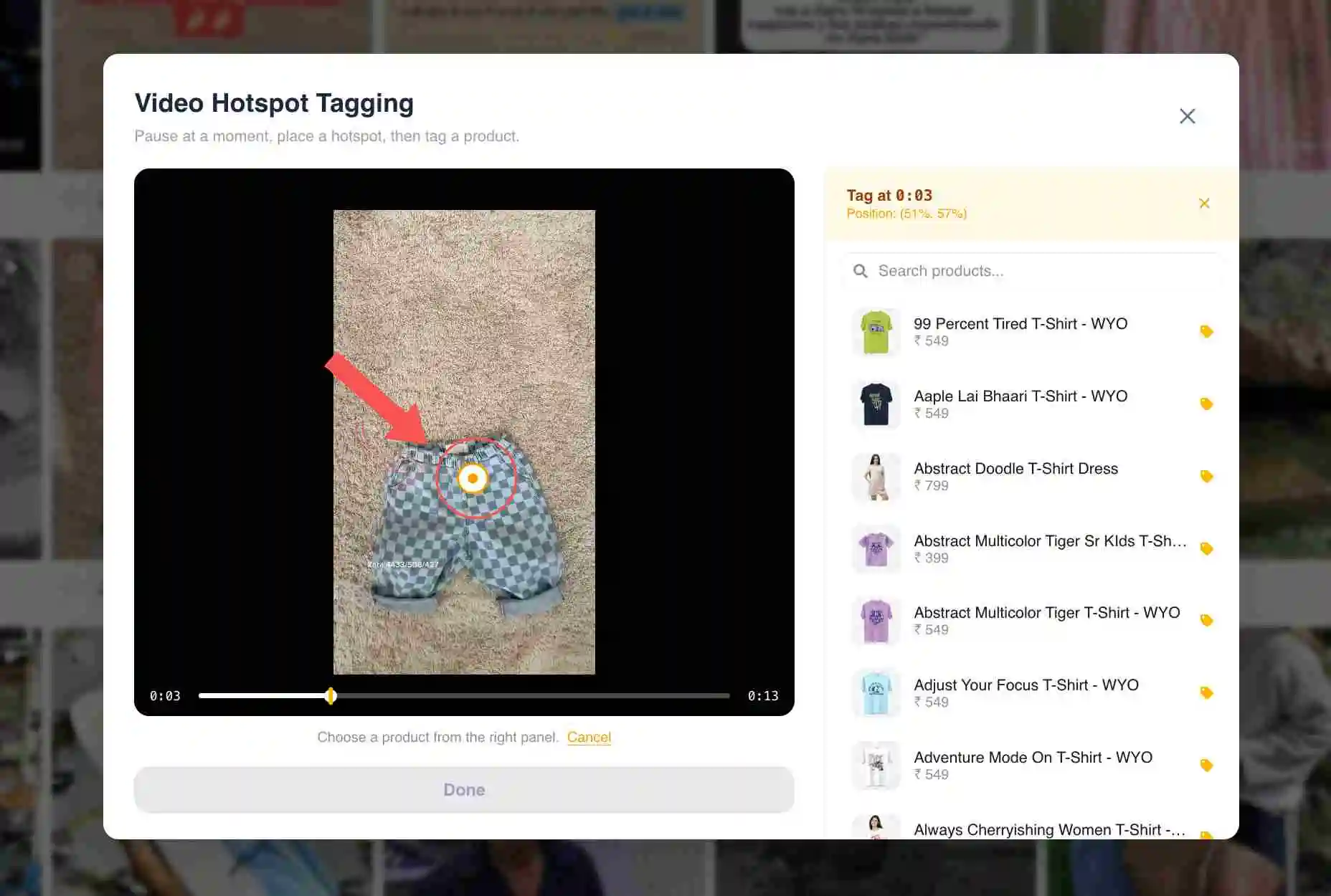
Video paused at the frame where a product appears - Click a position and tag the product. Clicca sul fotogramma nel punto in cui si trova il prodotto, poi cerca nel catalogo e associa il prodotto a quel momento del video.
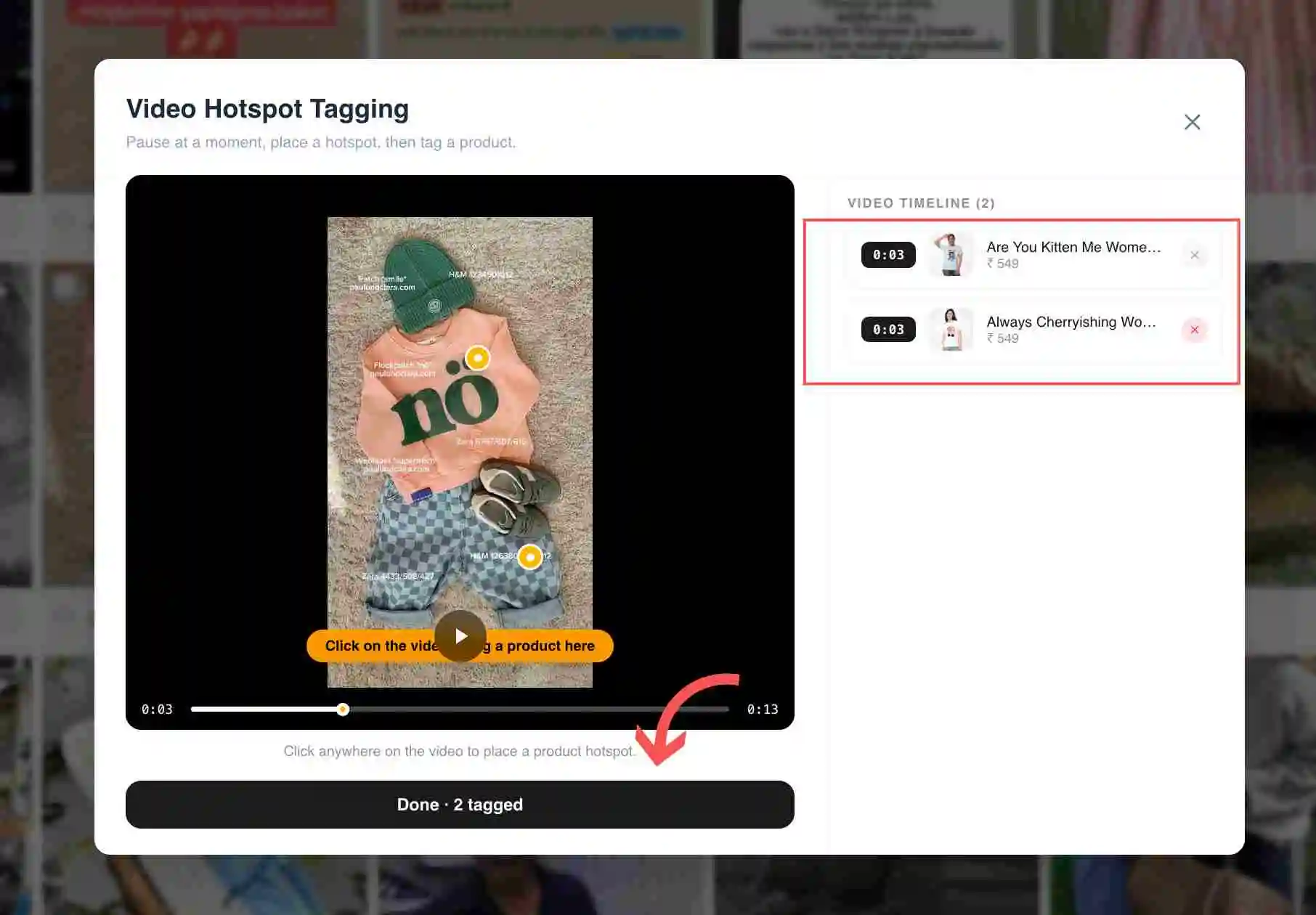
Clicking a position on the video frame to place a timed product hotspot - Repeat and save. Aggiungi altri hotspot a tempo per altri prodotti o altri momenti, poi salva. Ogni tag compare come hotspot per qualche secondo attorno al suo timestamp.
Hotspot nei video e hotspot nelle immagini
Image Hotspot Tagging colloca un pin in un punto fisso di una foto statica: il marcatore c'è sempre. Video Hotspot Tagging è legato a un momento: l'hotspot compare solo attorno al timestamp che imposti, poi svanisce. In questo modo puoi taggare prodotti diversi mentre il video va avanti. Per un tag che vale per l'intero post e non per un punto, usa Manual Tagging.
Problemi comuni
Se Video Hotspot Tagging non c'è nella finestra, il post potrebbe non essere un video oppure la modalità potrebbe non essere attiva sul tuo account. Usa Manual Tagging per collegare i prodotti all'intero video. Se un hotspot compare nel momento sbagliato, riapri il tagging, metti in pausa sul fotogramma corretto e posizionalo di nuovo.
Guide correlate
- Aggiungi link ai prodotti e hotspot (immagini): /help/add-product-links-and-hotspots
- Tagga i prodotti manualmente: /help/manual-product-tagging
- Configura i video acquistabili: /help/shoppable-video-setup


