
Video Hotspot Tagging rend une vidéo shoppable au bon moment. Vous mettez en pause sur une image, vous cliquez sur un point de la vidéo et vous identifiez un produit. Pendant la lecture, le produit apparaît sous forme de hotspot pendant environ trois secondes à cet endroit. C'est l'équivalent vidéo du Hotspot Tagging d'image, qui marque une position fixe sur une photo.
Ajouter un hotspot vidéo
- Open Tag Products. Sur une publication vidéo, ouvrez le menu à trois points et choisissez Tag Products dans la section Engage.
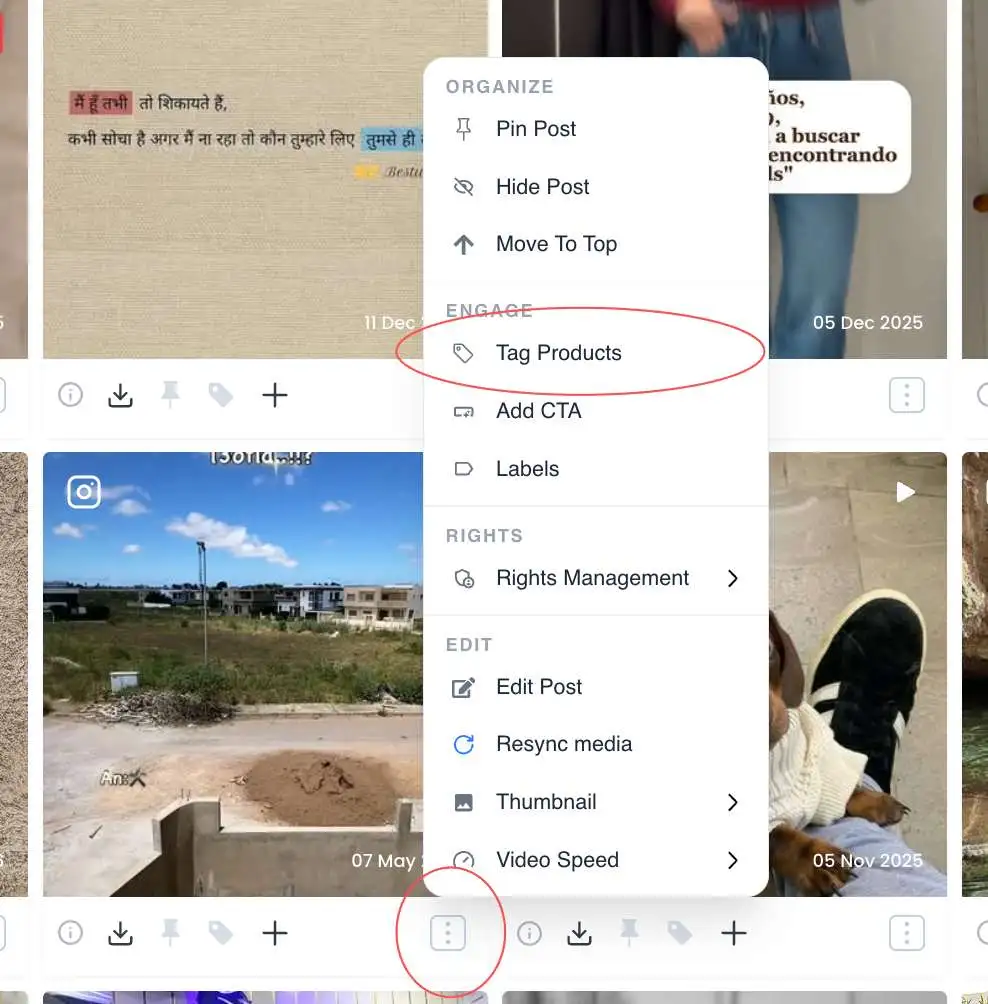
Tag Products option under the Engage section of the post menu - Choose Video Hotspot Tagging. Dans la boîte de dialogue Tag a product, choisissez Video Hotspot Tagging : "Pause at a moment, click a position on the video, and tag a product — it appears as a hotspot for 3 seconds during playback."
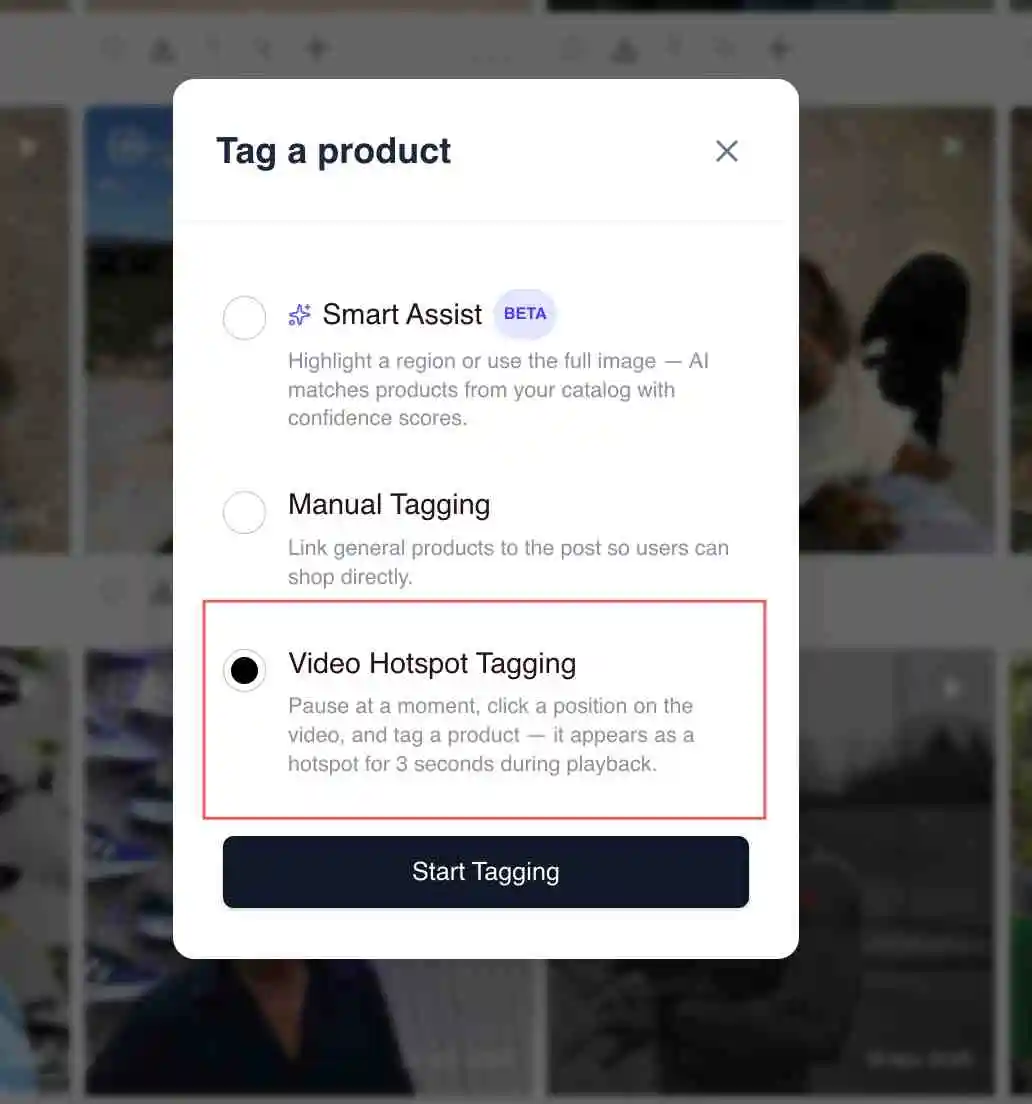
Video Hotspot Tagging option in the Tag a product dialog - Pause at the moment. Faites défiler ou mettez la vidéo en pause sur l'image où le produit est bien visible.
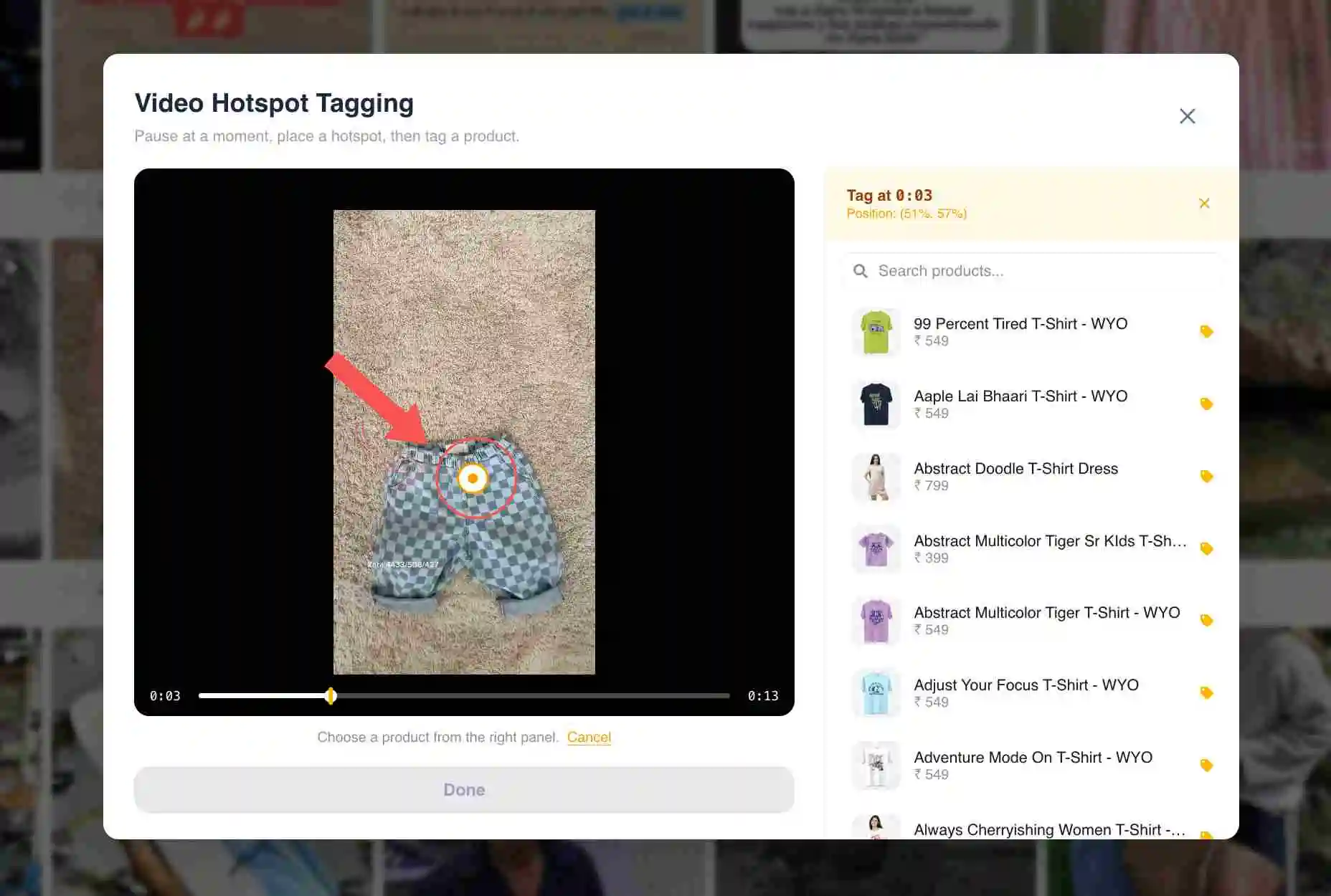
Video paused at the frame where a product appears - Click a position and tag the product. Cliquez à l'endroit où se trouve le produit sur l'image, puis cherchez dans votre catalogue et associez le produit à ce moment précis.
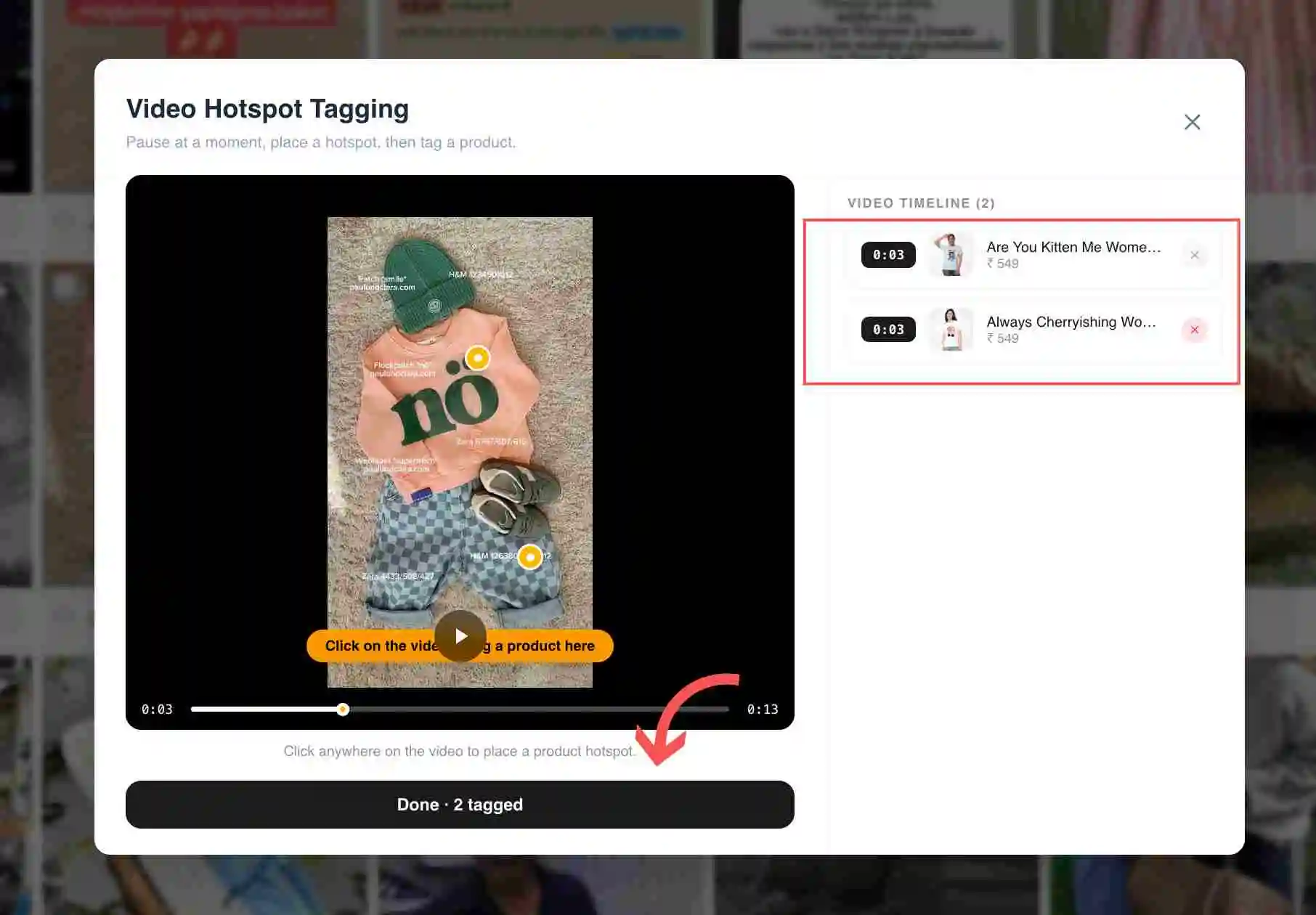
Clicking a position on the video frame to place a timed product hotspot - Repeat and save. Ajoutez d'autres hotspots temporisés pour d'autres produits ou d'autres moments, puis enregistrez. Chaque tag s'affiche comme un hotspot pendant quelques secondes autour de son repère temporel.
Hotspots vidéo et hotspots d'image
Le Hotspot Tagging d'image place un repère à un endroit fixe d'une photo ; le marqueur est toujours visible. Video Hotspot Tagging est lié à un moment : le hotspot n'apparaît qu'autour du repère temporel que vous définissez, puis s'estompe. Vous pouvez ainsi identifier différents produits au fil de la vidéo. Pour une identification qui s'applique à toute la publication plutôt qu'à un point, utilisez Manual Tagging.
Problèmes courants
Si Video Hotspot Tagging n'apparaît pas dans la boîte de dialogue, la publication n'est peut-être pas une vidéo, ou le mode n'est pas activé sur votre compte. Utilisez Manual Tagging pour associer des produits à l'ensemble de la vidéo. Si un hotspot tombe au mauvais moment, rouvrez l'identification, mettez en pause sur la bonne image et replacez-le.
Guides associés
- Ajouter des liens produit et des hotspots (image) : /help/add-product-links-and-hotspots
- Identifier des produits manuellement : /help/manual-product-tagging
- Configurer la vidéo shoppable : /help/shoppable-video-setup


