
How to request UGC rights from creators in Idukki
Ask a creator for permission by comment or by consent link. The steps in Idukki, and the record it keeps.

A customer posted the best photo of your sofa you have ever seen. Your ads team wants it on Monday. Nobody asked her. If she says no after the ad runs, you pull it and apologise. Asking first takes two minutes.
In Idukki, every post has a Rights Management menu. Ask by comment, with a reply hashtag. Or send the creator a consent link. Both leave a record you can show later. Here are the steps.
How to do it in Idukki
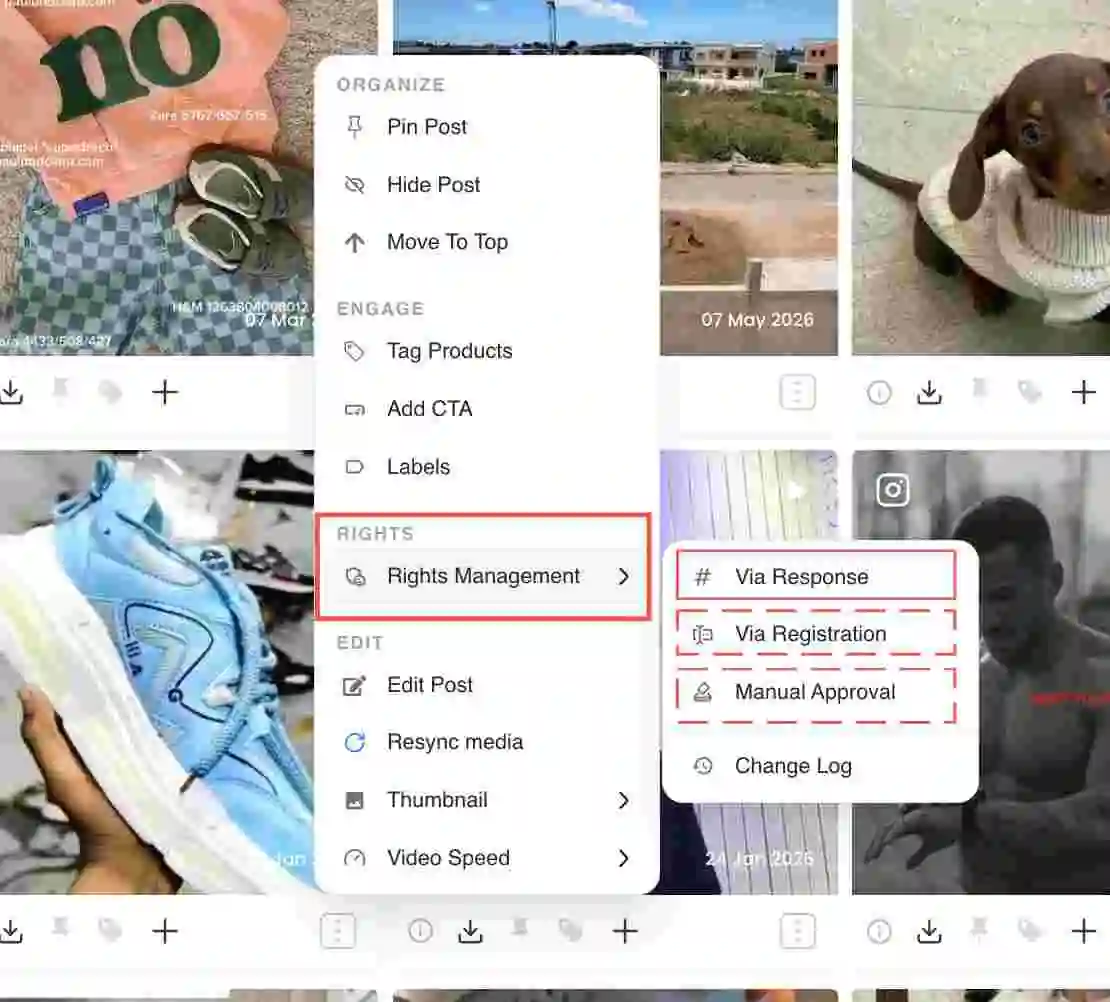
Step 1: open Rights Management on the post
- 1In Collections, open the collection that holds the post.
- 2Click the three-dot menu on the post.
- 3Under Rights, open Rights Management.
- 4Pick Via Response, Via Registration or Manual Approval.
Step 2a: ask by comment (Via Response)
Via Response, as the dashboard shows it
- 01
Edit the request
Write the message. Add the creator's username, your approval hashtag and a terms link.
- 02
Preview
Check the comment. Click Copy, or Post comment on Instagram if you connected it.
- 03
Send
Open the post, paste the comment, then tick Mark as pending.
- 04
Creator replies
They answer with your hashtag. Idukki checks for it and marks rights approved.
Connected your Instagram account in Settings? Idukki can post the comment for you on posts that mention you. Otherwise you copy the message and paste it yourself. Keep the hashtag short and unique, such as your brand name plus "Yes".
Step 2b: send a consent link (Via Registration)
- 1Choose Via Registration in the Rights Management menu.
- 2Copy the link, or click Copy Message for a ready-to-send note.
- 3Send it to the creator by DM, email or comment.
- 4The creator opens a Content Rights Request form. They agree to your terms and click Submit & Grant Rights.
- 5The post shows as approved in your collection.
The link is signed for that one post and lasts 30 days. The form records the creator's name, email and their answer. Use it for ads and email, where you want more than a comment reply.
Via Response
A comment and a hashtag reply.
Wins at
- The creator answers where they already are
- Idukki can post the comment for you
Struggles with
- Instagram and YouTube posts only
- A reply is less detail than a form
Via Registration
A consent form behind a signed link.
Wins at
- Name, email and a ticked agreement
- Works for any post
Struggles with
- One more step for the creator
- The link lasts 30 days
Step 3: record rights you cleared elsewhere
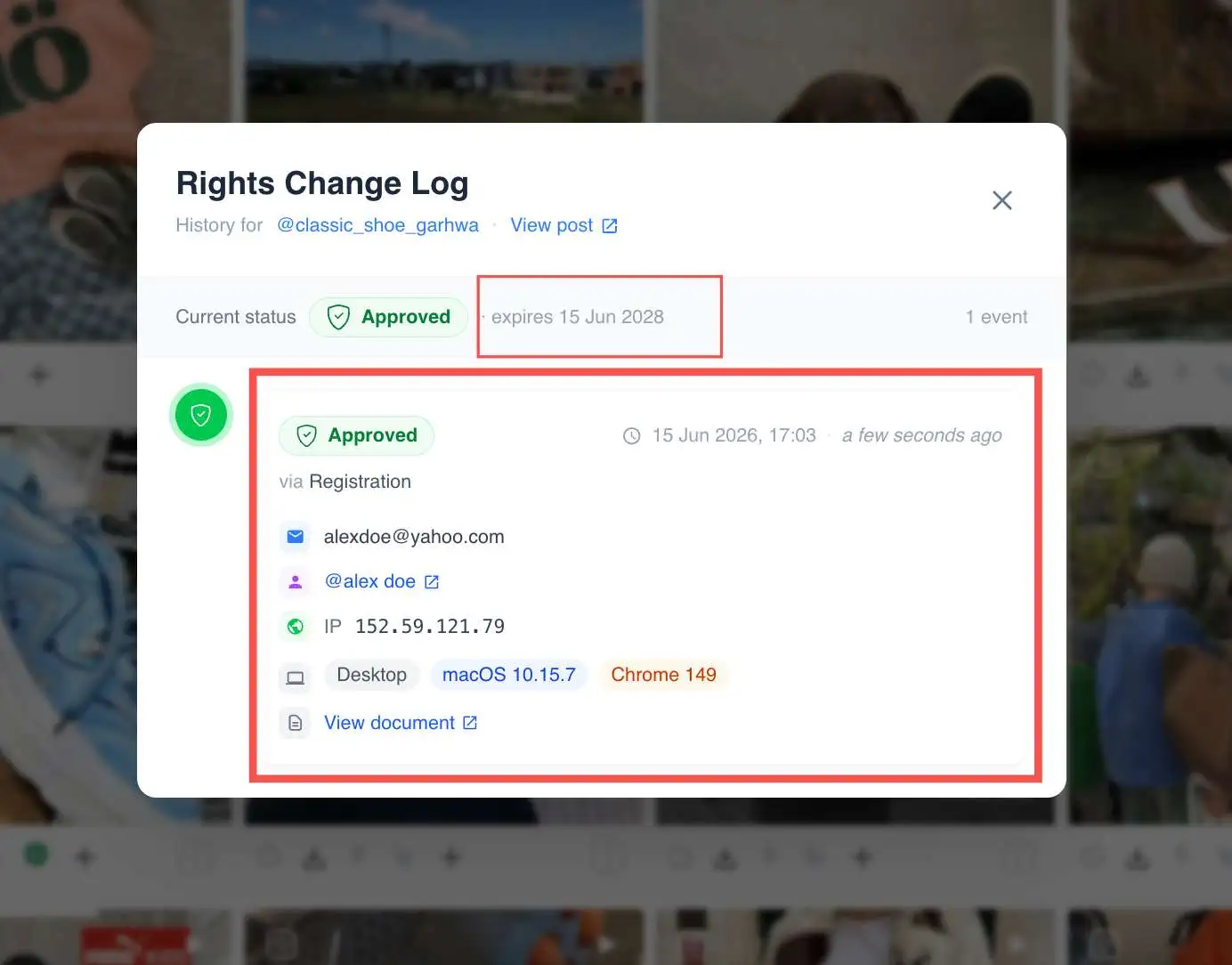
Got a yes by email, or you own the content? Choose Manual Approval to mark the post approved. The same menu shows Revoke Rights later if a creator changes their mind. Open Change Log for the full history.
Show only cleared posts
In a gallery's filter settings, set Approval Status to Approved Posts. The gallery then shows only posts with granted rights. Track every request under Settings, then Rights management.
Setting it up on a store? See Idukki for Shopify, WordPress or Wix.
Automate it: shortlist posts for rights in Google Sheets and get alerts before rights expire.
Questions merchants ask
Do I need rights for posts that use my hashtag?
Yes. A hashtag is not a licence. Ask before a post goes on a product page, email or ad.
How does Idukki know the creator said yes?
By comment, it looks for your approval hashtag. By link, the creator submits the consent form.
How long does a consent link last?
30 days. Send a new one if it expires.
Can I undo an approval?
Yes. Choose Revoke Rights in the same menu. The Change Log records it.
Related
- 1Help: Request usage rights · The help centre version of these steps.
- 2Help: Approve content rights · Manual approval, revoke and the change log.
- 3Rights management in Idukki · What the feature covers.
- 4The UGC rights and permissions guide · What to ask for, and why.
More from Rohin Aggarwal
- Rights and compliance
Instagram UGC rights requests: two messages, a consent page and the proof to keep
Copy-ready templates for a public comment, a DM and a consent page. Plus what to store as proof and what to do when the answer is no.
- Rights and compliance
Instagram's Partnership Ads API: what it means for UGC rights management
Instagram's Partnership Ads API lets brands run paid media directly from creator handles with 30–40% higher reported engagement. The rights question nobody is asking: who owns this content, and what did the creator actually agree to?
- Rights and compliance
How to legally collect UGC from Instagram and TikTok
A repost is not permission. To put a customer's photo or video on your store or in an ad you need a documented licence, with a recorded reply that grants it.